
This installation guide explains the checks that come before entering your subscription on a screen. Use the instructions for your exact model and a compatible player. Keep the login details supplied with your order private, and confirm any separate player licence before purchasing an app.
On this page
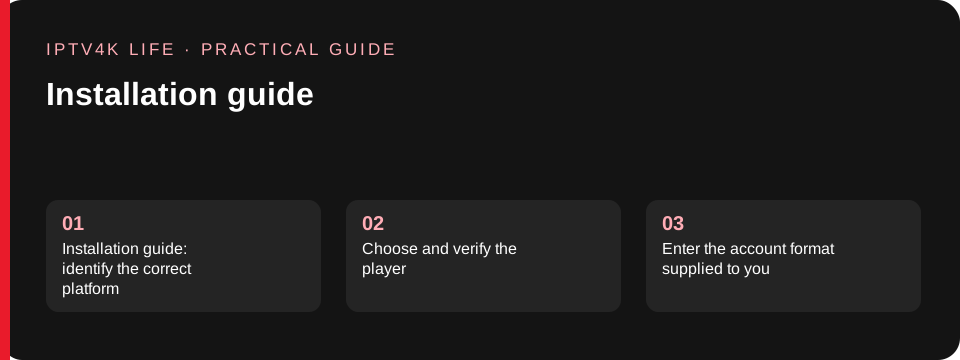
Installation guide: identify the correct platform
Start with the full model number and operating system shown in the device settings. A television brand can sell several platforms, and a guide written for an Android box may not apply to its Smart TV range. Write down the player name and version as well.
If the menus in this installation guide differ from what you see, confirm the model with support instead of following unrelated instructions.
App availability can also vary by country, so verify the local official store listing.
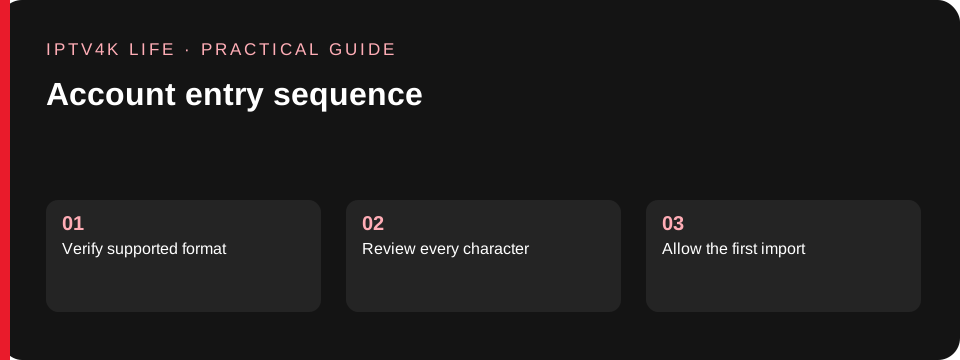
Choose and verify the player
A player is software for displaying content; it does not necessarily include a subscription. Check its publisher, supported account formats and any app activation charge. Install from the device’s official store where possible. Keep the app receipt separate from the content-subscription receipt, because the two products may have different support contacts and expiry dates.
Before paying for a player licence, ask whether it is suitable for the package you intend to use and for a remote-control interface.
Enter the account format supplied to you
Follow the login method specified by support. For an account-style login, place the server address, username and password in their separate fields. For a playlist, copy the complete address without adding spaces or removing parameters. TV remotes can introduce typing mistakes, so review punctuation carefully. Do not paste a private playlist into a public conversion website.
If the installation guide does not match the format you received, ask support which method is intended before changing the account details.
Allow the first channel and guide update
A player may import its channel list before the programme guide finishes loading. Allow that initial update to complete rather than repeatedly closing the application. If support supplies a separate EPG address, add it in the intended guide settings. Check the device time zone before applying manual offsets. Try a few channels after the import, including one that normally has programme listings.
Report a precise missing channel or shifted time instead of clearing the entire configuration immediately.
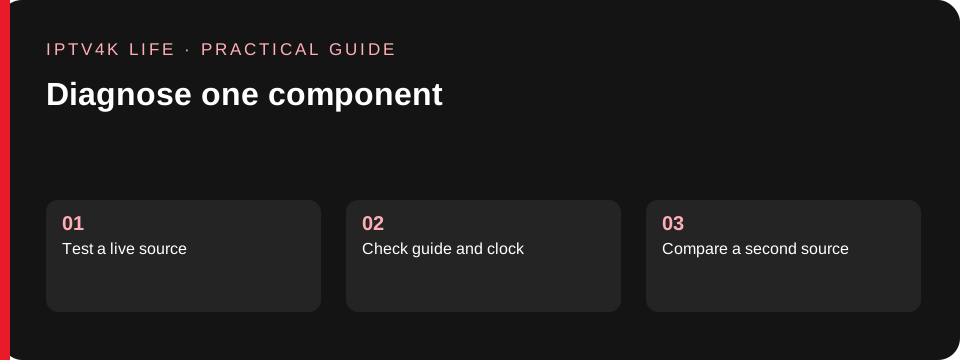
Test playback and simultaneous screens
Use your normal viewing device and internet connection. Test more than one source so a single failing channel is not confused with a device-wide issue. Compare a wired connection when available if Wi-Fi is unstable. Then confirm the simultaneous connection allowance before playing another screen. Installing the player on several devices does not automatically allow them all to stream together.
This installation guide can help with the process, while support confirms the actual package restrictions.
Keep a useful setup record
Record the device model, player version, supported login method and the order reference in a private place. Keep passwords out of shared documents and screenshots. If something stops working later, note the exact error and whether the issue affects one source or all playback. Mention the installation guide when you contact support and describe the last step that worked.
A clear record helps separate an app issue, an account question and a home-network problem without unnecessary reinstallations.
For a question about this installation guide page, contact IPTV4K LIFE. Read the installation guide or browse the IPTV blog for related help.
Installation guide: check common typing mistakes
When a playlist fails to load, compare the address against the original private message character by character. A missing slash, an extra space at the end or a letter substituted for a number can prevent access. Some players have separate fields for an EPG address and a content playlist; placing the correct value in the wrong field still fails.
Do not remove address parameters simply to shorten what you type.
If a remote makes accurate entry difficult, check the player publisher’s supported input method. Avoid unofficial tools that ask you to upload the complete account link. The installation guide assumes you are using the account format confirmed for your package, so ask support before converting it to another format.
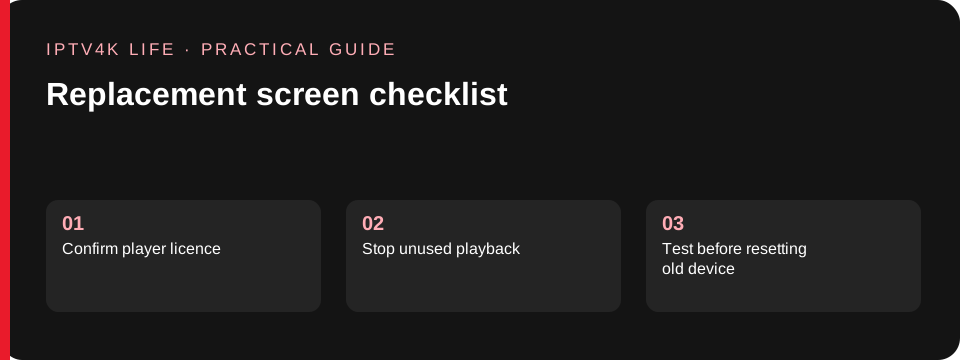
Separate guide problems from playback problems
An empty programme guide does not necessarily mean the entire subscription has stopped. First check whether a known live source plays. If it does, inspect the guide update status and the device clock rather than repeatedly replacing the account. If live playback also fails, record the error and compare another source.
Catch-up availability is another separate feature: a normal live channel can work without supporting earlier programmes.
In this installation guide, each check is intended to isolate one component. Keep a simple record showing the source, player and result. That record is more helpful than a general description that all television is broken, especially when only one guide listing is missing.
Installation guide for a replacement device
Before replacing a television or box, check whether the player licence can be transferred and whether support needs to update any device association. Those details depend on the actual app and offer, so do not assume that copying an icon or reinstalling an app copies every setting.
Keep the original device available until the new setup has been tested, and stop its playback when testing the connection allowance.
Check live television, guide timing and any on-demand features you normally use. Confirm your preferred audio and subtitle settings separately. Once the new device works, remove private account details from equipment you intend to sell or give away through the device’s normal reset process. Return to this installation guide whenever the replacement screen uses a different operating system or player.
Practical questions and examples
Does a player installation include television content?
Not necessarily. The player provides an interface for compatible content, while the subscription supplies the account or playlist. Some players also require their own licence. Verify those separate items before paying or entering account details. A successful app installation only confirms that the app is present; it does not confirm that a particular package is active or supported.
Use this installation guide to identify the components, then ask support which player and login method your offer requires.
Should I import an account more than once?
Repeated imports can create duplicate playlists or make it unclear which account entry is being tested. Check whether the player already contains the intended account before adding another copy. Allow an initial import to finish, then test a known source. If an entry needs correction, follow the player’s supported edit process and keep private values out of screenshots.
Record the entry name and result so support can distinguish an old configuration from the current one.
How do audio and subtitle checks fit into setup?
After basic playback works, check the player’s audio-track and subtitle controls on a source that offers alternatives. The available options depend on both the source and player. A menu setting cannot create a track that the source does not provide. Note the channel or title used for the test and which choices appeared. Keep those results separate from a general playback report.
This installation guide recommends checking features you actually use before considering a device migration complete.
What should I record before resetting a player?
Write down the player name and version, the account format, the exact error and the last action that worked. Keep subscription details privately in the approved location rather than photographing them for a public forum. Check whether an app licence needs to be restored after a reset. Ask support whether a less disruptive test is appropriate first.
Clearing every setting can remove evidence about a guide or source-specific problem without addressing the underlying cause.
How do I use the installation guide after an update?
Compare the new player version with your earlier setup record. Check whether the update changed a menu name, login screen or guide setting before assuming the account failed. Test one live source and one feature you normally use, then note the first difference. Avoid changing several settings together.
If the guide no longer matches the app, give support the version and the exact step so the instructions can be checked against the updated interface.
A final setup handover
Before finishing the installation guide, make a private setup note containing the full device model, operating system, player publisher and version. Record the supported account format, the subscription reference and which sources you tested. Keep credentials in the intended private location rather than in a shared household document.
Check that everyone using the screen understands the simultaneous connection allowance. Show them how to stop playback on unused devices and where to find the player’s normal settings. Keep the published support route available so a later problem can be reported with the same device and account context.